This assignment will familiarize you with FTP and FileZilla, an FTP client. You will learn to use Filezilla to transfer files to a remote computer.
Download and install FileZilla. If you wish to use it in a school lab, install the portable version.
Play around with FileZilla, using it to transfer some files to your directory on sws.csudh.edu and back. Practice deleting and renaming files. Explore the options under the view and edit > settings menus.
Also watch the commands that are listed in the top display pane. They show you the interaction, the "conversation" between an FTP client and an FTP server as spelled out in the FTP protocol.
When you see how it works and are comfortable with FileZilla, upload the introductory .mp3 file you created for this assignment. Be sure the file is named intro.mp3.
Next, use a Web client to retrieve and play your file. The URL (Web address) of your file will be:
http://sws.csudh.edu/<your user name>/intro.mp3.
Print and turn in a screen shot of the browser while the audio is playing and another one of Filezilla showing the audio file on the server.
Link to topic module
Showing posts with label ftp. Show all posts
Showing posts with label ftp. Show all posts
Monday, April 11, 2011

Wednesday, November 10, 2010
Upload your picture
This assignment will give you practice with file transfer.
Upload a 250 by 250 pixel picture of your face to your directory on sws.csudh.edu.
(Be sure to retain the aspect ratio of the original image so it is not distorted).
Give it the name me.jpg.
After it is uploaded, view it using a Web client at:
http://sws.csudh.edu/<your account name>/me.jpg.
Print and turn in a copy of your picture as viewed on the server using a Web client and a screen shot of FileZilla showing the image file on the server.
Link to topic module
Upload a 250 by 250 pixel picture of your face to your directory on sws.csudh.edu.
(Be sure to retain the aspect ratio of the original image so it is not distorted).
Give it the name me.jpg.
After it is uploaded, view it using a Web client at:
http://sws.csudh.edu/<your account name>/me.jpg.
Print and turn in a copy of your picture as viewed on the server using a Web client and a screen shot of FileZilla showing the image file on the server.
Link to topic module
Monday, November 8, 2010
FTP play -- upload an HTML file
This assignment will familiarize you with FTP and FileZilla, an FTP client. You will learn to use Filezilla to transfer HTML pages to a Web server where they can be viewed by others.
Download and install FileZilla. If you wish to use it in a school lab, install the portable version.
Play around with FileZilla, using it to transfer some files to your directory on sws.csudh.edu and back. Practice deleting and renaming files. Explore the options under the view and edit > settings menus.
Also watch the commands that are listed in the top display pane. They show you the interaction, the "conversation" between an FTP client and an FTP server as spelled out in the FTP protocol.
When you see how it works and are comfortable with FileZilla, create an HTML document that says "Wow, you can see this from all over the world!!!!". Save it with the name hello.htm, and transfer it to your directory on sws.csudh.edu, checking to be sure it is there. View it on sws.csudh.edu using a Web client -- it should look like this:

(If you view a changed file, and it appears not to have changed, reload it since it may have been cached by the browser).
When it looks exactly like mine, print it out to turn in. (Note that the screen shot of your Web page should be made from the server, sws.csudh.edu, not your local hard drive).
Also print and turn in a screen shot of FileZilla showing the files in your directory on the server.
Link to topic module
Download and install FileZilla. If you wish to use it in a school lab, install the portable version.
Play around with FileZilla, using it to transfer some files to your directory on sws.csudh.edu and back. Practice deleting and renaming files. Explore the options under the view and edit > settings menus.
Also watch the commands that are listed in the top display pane. They show you the interaction, the "conversation" between an FTP client and an FTP server as spelled out in the FTP protocol.
When you see how it works and are comfortable with FileZilla, create an HTML document that says "Wow, you can see this from all over the world!!!!". Save it with the name hello.htm, and transfer it to your directory on sws.csudh.edu, checking to be sure it is there. View it on sws.csudh.edu using a Web client -- it should look like this:
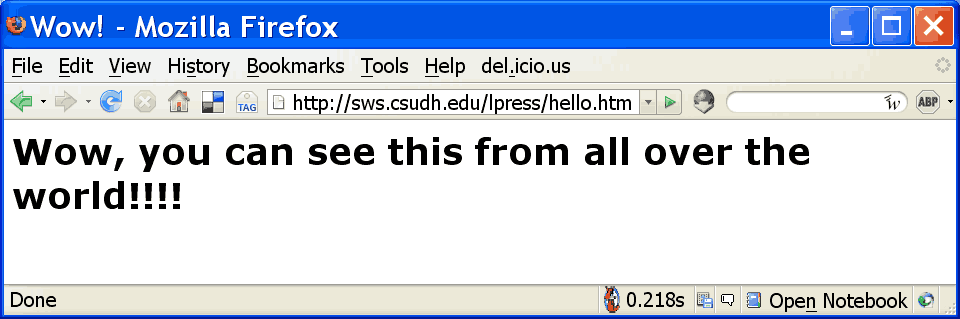
(If you view a changed file, and it appears not to have changed, reload it since it may have been cached by the browser).
When it looks exactly like mine, print it out to turn in. (Note that the screen shot of your Web page should be made from the server, sws.csudh.edu, not your local hard drive).
Also print and turn in a screen shot of FileZilla showing the files in your directory on the server.
Link to topic module
Subscribe to:
Posts (Atom)