This assignment will test your ability to create a wiki when needed.
We will use the wiki service at Wikispaces.com.
Create a wiki with a home page with links to three sub pages.
1. A page with a description of the best class you have had at CSUDH -- one that you would recommend to your friends. Be sure to include the name and number of the class, the instructor's name and a brief statement as to why you recommend it so highly.
2. A page with a description of the most interesting post you have seen on our class blog -- one that you think others should read. Give a short summary of what the post says and why you are recommending it. Be sure to include a link to the post (its permalink).
3. A page devoted to any topic you choose -- something you care about.
Print your pages to turn in and also add a link to your wiki to our class roster.
Link to topic module
Showing posts with label application development. Show all posts
Showing posts with label application development. Show all posts
Tuesday, November 8, 2011

Friday, October 7, 2011
Build a test application
This assignment illustrates the ease of developing applications using Internet services.
Find an Internet service for building applications like blogs, wikis, databases, surveys, etc. Build a test application, keeping track of the time you spend on the project. How much time did you spend learning the basics, building and debugging the application?
Print a screen shot of your application and write a short summary of what it does and your effort -- your activities and the time you spent on the project.
Link to topic module
Find an Internet service for building applications like blogs, wikis, databases, surveys, etc. Build a test application, keeping track of the time you spend on the project. How much time did you spend learning the basics, building and debugging the application?
Print a screen shot of your application and write a short summary of what it does and your effort -- your activities and the time you spent on the project.
Link to topic module
Tuesday, October 4, 2011
Developing a database application on the Internet
This assignment illustrates the power and simplicity of building an application using an Internet service.
I created two simple roster applications. I programmed one by hand and built the second using Zoho Creator, an Internet database service.
Add your name and email address to the hand-programmed roster:
http://sws.csudh.edu/lpress/rosterfixed/roster_view.asp
If you have not already done so, add your name and email address to Zoho Creator roster:
https://creator.zoho.com/lpress/copy-of-cis275-roster1/#View:CIS275_with_blog
Print both roster listings with your name on them.
Play around with both applications until you see how they work. For example, delete and re-add your record from both rosters. Sort the Zoho Creator roster. Filter out some records from it.
1. Both are class roster applications, but they are not identical. What are two differences between the two applications?
2. Which roster application is most useful and flexible? (Explain your answer).
Turn in your answers to these questions along with the printouts showing your entry in both rosters.
Link to topic module
I created two simple roster applications. I programmed one by hand and built the second using Zoho Creator, an Internet database service.
Add your name and email address to the hand-programmed roster:
http://sws.csudh.edu/lpress/rosterfixed/roster_view.asp
If you have not already done so, add your name and email address to Zoho Creator roster:
https://creator.zoho.com/lpress/copy-of-cis275-roster1/#View:CIS275_with_blog
Print both roster listings with your name on them.
Play around with both applications until you see how they work. For example, delete and re-add your record from both rosters. Sort the Zoho Creator roster. Filter out some records from it.
1. Both are class roster applications, but they are not identical. What are two differences between the two applications?
2. Which roster application is most useful and flexible? (Explain your answer).
Turn in your answers to these questions along with the printouts showing your entry in both rosters.
Link to topic module
Monday, April 11, 2011
FTP play -- upload an audio file
This assignment will familiarize you with FTP and FileZilla, an FTP client. You will learn to use Filezilla to transfer files to a remote computer.
Download and install FileZilla. If you wish to use it in a school lab, install the portable version.
Play around with FileZilla, using it to transfer some files to your directory on sws.csudh.edu and back. Practice deleting and renaming files. Explore the options under the view and edit > settings menus.
Also watch the commands that are listed in the top display pane. They show you the interaction, the "conversation" between an FTP client and an FTP server as spelled out in the FTP protocol.
When you see how it works and are comfortable with FileZilla, upload the introductory .mp3 file you created for this assignment. Be sure the file is named intro.mp3.
Next, use a Web client to retrieve and play your file. The URL (Web address) of your file will be:
http://sws.csudh.edu/<your user name>/intro.mp3.
Print and turn in a screen shot of the browser while the audio is playing and another one of Filezilla showing the audio file on the server.
Link to topic module
Download and install FileZilla. If you wish to use it in a school lab, install the portable version.
Play around with FileZilla, using it to transfer some files to your directory on sws.csudh.edu and back. Practice deleting and renaming files. Explore the options under the view and edit > settings menus.
Also watch the commands that are listed in the top display pane. They show you the interaction, the "conversation" between an FTP client and an FTP server as spelled out in the FTP protocol.
When you see how it works and are comfortable with FileZilla, upload the introductory .mp3 file you created for this assignment. Be sure the file is named intro.mp3.
Next, use a Web client to retrieve and play your file. The URL (Web address) of your file will be:
http://sws.csudh.edu/<your user name>/intro.mp3.
Print and turn in a screen shot of the browser while the audio is playing and another one of Filezilla showing the audio file on the server.
Link to topic module
Test your new Web directory
A directory has been created for you on the Web server at sws.csudh.edu.
At this point, the directory is empty, but you can check to see that it has been set up by pointing a Web browser at:
http://sws.csudh.edu/<your user name>.
If your account has been set up, you should see a message saying "directory listing denied" or "The website declined to show this webpage," depending upon which browser you use. Print a screen shot showing that message in the browser.
If you get a page not found error, double check the spelling of the URL, and, if it is correct, send me an email with a screen shot.
Next, add a link to http://sws.csudh.edu/<your user name> to your record in our class roster.
Print and turn in a screen shot showing the roster with your name highlighted.
At this point, the directory is empty, but you can check to see that it has been set up by pointing a Web browser at:
http://sws.csudh.edu/<your user name>.
If your account has been set up, you should see a message saying "directory listing denied" or "The website declined to show this webpage," depending upon which browser you use. Print a screen shot showing that message in the browser.
If you get a page not found error, double check the spelling of the URL, and, if it is correct, send me an email with a screen shot.
Next, add a link to http://sws.csudh.edu/<your user name> to your record in our class roster.
Print and turn in a screen shot showing the roster with your name highlighted.
Monday, November 29, 2010
Home page with a subdirectory
This assignment will give you practice adding a subdirectory to your Web site.
Create a subdirectory called audio and put your audio introduction in it along with at least one other audio experiment.
Put an index.htm with links to your audio experiments in your audio directory.
Finally, add links to your introduction audio and to your audio experiments to your home page.
(When you are finished, it should look like this).
If you find these instructions vague, study the source HTML from my example. Studying what others have done is often a good way to learn.
When you are finished, make sure your link in the class roster goes to this revised home page and check all the links you added to it.
When it is perfect, print and turn in copies of your home page on sws.csudh.edu in a browser and a your html files.
Create a subdirectory called audio and put your audio introduction in it along with at least one other audio experiment.
Put an index.htm with links to your audio experiments in your audio directory.
Finally, add links to your introduction audio and to your audio experiments to your home page.
(When you are finished, it should look like this).
If you find these instructions vague, study the source HTML from my example. Studying what others have done is often a good way to learn.
When you are finished, make sure your link in the class roster goes to this revised home page and check all the links you added to it.
When it is perfect, print and turn in copies of your home page on sws.csudh.edu in a browser and a your html files.
Sunday, November 21, 2010
Wiki play
The purpose of this assignment is to familiarize you with wikis, which are tools for collaborative writing.
Create an account at wikispaces.com. Your user name should be your last name followed by your first name. (For example, mine would be PressLarry). If your user name is already taken by someone else, just add a number after it and try again. You will receive a confirmation email to which you must reply, so be sure it does not go into a spam folder
Once you have created your account, go to the Play page on our class wiki. That page is just for playing around and getting used to the editor.
There is nothing to turn in for this assignment, so it will not be graded. However, if you do not paly around on the practice page until you are comfortable with the wiki, you will probably mess something up while trying to do another assignment. Since we share the class wiki, that would hurt everyone -- don't be the one to do it.
Link to topic module
Create an account at wikispaces.com. Your user name should be your last name followed by your first name. (For example, mine would be PressLarry). If your user name is already taken by someone else, just add a number after it and try again. You will receive a confirmation email to which you must reply, so be sure it does not go into a spam folder
Once you have created your account, go to the Play page on our class wiki. That page is just for playing around and getting used to the editor.
- Add something to the page (be sure to save the edits).
- Change the type font on some portion of the page.
- Add a comment to the Discussion page.
- View the History page.
- Compare two versions on the History page.
- Check the Notify page to see how to subscribe to be informed of changes via email or RSS.
There is nothing to turn in for this assignment, so it will not be graded. However, if you do not paly around on the practice page until you are comfortable with the wiki, you will probably mess something up while trying to do another assignment. Since we share the class wiki, that would hurt everyone -- don't be the one to do it.
Link to topic module
Update wiki roster
 In this assignment, you will edit a composite wiki page and also consider the difference between a wiki page and an online data file.
Once your home page is on sws.csudh.edu, add a line to the roster page of our class wiki.
Your line should have your last name, first name, section (day or eve) and a link to your home page. We want the list to be in alphabetical order by last name, so be sure to put your entry in the correct place. (Since it is a wiki, you can fix it if someone messes up).
I have added my SWS home page as an example. Your link should say "My home page" and it should go to your home page on sws.csudh.edu. Note that I named my home page index.htm so I do not have to repeat that in the URL. I also specified that it be opened in a new window.
Test the link to be sure that it leads to your home page on sws.csudh.edu, that it opens in a new window, and is at the proper place in alphabetical order. (I will be checking). When it works properly, print a screen shot showing your updated roster entry, highlight it and turn it in.
In a previous assignment, you added a record to our class roster database. Now you have added a link to class roster wiki page. What is one advantage of the database over the wiki page and what is one advantage of the wiki page over the database? Print your answer and turn it in.
Link to topic module
First home page
This assignment will give you practice putting content on a server.
Create a home page like this one, substituting a link to your blog and inserting your photo.
Be sure your home page looks just like mine and that all of the links work correctly. Note that my picture is 250 by 250 pixels with a 1 pixel border around it. I did not use the image height and width attributes, but re-sized the image using an image processing program, and it is not distorted.
When it is finished, rename it index.htm and transfer it to your directory on sws.csudh.edu. Also transfer your image file to the server. View your home page on sws.csudh.edu using a Web browser, and print a screen shot and the HTML source to turn in.
Note that since index.htm has been set as a default file name on the server, you do not have to type it in the URL.
If you haven't already done so, add a link to your home page to our class roster and test it to be sure it works.
Hint -- you won't get credit if your picture is not 250 by 250 and you use the height and width attributes. You should also test your home page and roster links on the server. You won't get credit if any of them is broken.
Link to topic module
Create a home page like this one, substituting a link to your blog and inserting your photo.
Be sure your home page looks just like mine and that all of the links work correctly. Note that my picture is 250 by 250 pixels with a 1 pixel border around it. I did not use the image height and width attributes, but re-sized the image using an image processing program, and it is not distorted.
When it is finished, rename it index.htm and transfer it to your directory on sws.csudh.edu. Also transfer your image file to the server. View your home page on sws.csudh.edu using a Web browser, and print a screen shot and the HTML source to turn in.
Note that since index.htm has been set as a default file name on the server, you do not have to type it in the URL.
If you haven't already done so, add a link to your home page to our class roster and test it to be sure it works.
Hint -- you won't get credit if your picture is not 250 by 250 and you use the height and width attributes. You should also test your home page and roster links on the server. You won't get credit if any of them is broken.
Link to topic module
Monday, November 15, 2010
Links to pages on other servers
The purpose of this assignment is to learn to put links to pages that are on other servers.
Create an HTML page with two short paragraphs on the following posts on our class blog:
Create your page, test the links, and, when all is working, upload it to your account on the server. Turn in a printout of the HTML source and a screenshot of the finished page on the server (not your local storage) as seen in a Web client.
Link to topic module
Create an HTML page with two short paragraphs on the following posts on our class blog:
- Substituting communication for transportation
- Why is connectivity in Stockholm so much faster and cheaper than in US cities?
Create your page, test the links, and, when all is working, upload it to your account on the server. Turn in a printout of the HTML source and a screenshot of the finished page on the server (not your local storage) as seen in a Web client.
Link to topic module
HTML lists
This assignment will test your ability to make ordered and unordered lists in HTML pages.
Make up a list of three or more items on any topic, and display it as both an ordered and unordered list.
Make some of the items in your lists italic and bold face.
The "bullets" on the unordered list should be square, not round.
When the lists are finished, upload the page to your account on the server. Turn in a printout of the HTML source and a screenshot of the finished page on the server (not your local storage) viewed using a Web client.
Link to topic module
Make up a list of three or more items on any topic, and display it as both an ordered and unordered list.
Make some of the items in your lists italic and bold face.
The "bullets" on the unordered list should be square, not round.
When the lists are finished, upload the page to your account on the server. Turn in a printout of the HTML source and a screenshot of the finished page on the server (not your local storage) viewed using a Web client.
Link to topic module
New HTML elements
This assignment will reinforce the concepts of tag, attribute and value and expose you to an HTML reference site.
View the HTML source for this page. As you see, there are some new HTML elements. Experiment with this example and use a reference site to answer the following questions:
View the HTML source for this page. As you see, there are some new HTML elements. Experiment with this example and use a reference site to answer the following questions:
- What is the effect of < in an HTML page?
- What is the effect of > in an HTML page?
- What does the blockquote tag do?
- Which attributes of the font tag are used in this example?
- What is another attribute of the font tag?
- bgcolor is an attribute of which tag?
- What happens if you change the value of bgcolor to #ABCDEF?
Wednesday, November 10, 2010
Upload your picture
This assignment will give you practice with file transfer.
Upload a 250 by 250 pixel picture of your face to your directory on sws.csudh.edu.
(Be sure to retain the aspect ratio of the original image so it is not distorted).
Give it the name me.jpg.
After it is uploaded, view it using a Web client at:
http://sws.csudh.edu/<your account name>/me.jpg.
Print and turn in a copy of your picture as viewed on the server using a Web client and a screen shot of FileZilla showing the image file on the server.
Link to topic module
Upload a 250 by 250 pixel picture of your face to your directory on sws.csudh.edu.
(Be sure to retain the aspect ratio of the original image so it is not distorted).
Give it the name me.jpg.
After it is uploaded, view it using a Web client at:
http://sws.csudh.edu/<your account name>/me.jpg.
Print and turn in a copy of your picture as viewed on the server using a Web client and a screen shot of FileZilla showing the image file on the server.
Link to topic module
Monday, November 8, 2010
Default URLs
This assignment will familiarize you with the use of default page names in URLs.
If you enter a URL that includes the name of an HTML page, a browser will retrieve and display that page. But, if there is no file name, the server will return a default page. Default page names are under the control of the server administrator, but index.htm is commonly used.
Create an HTML page, give it the name index.htm, and transfer it to your directory on sws.csudh.edu. The page can say anything you like -- talk about school, hobbies, whatever. Use this as a chance to express yourself and experiment with tags and their attributes.
Retrieve the page using a Web browser, without adding the file name index.htm to the URL.
Print and turn in a copy of the HTML source file (index.htm) and a screen shot of the page displayed in the browser.
Link to topic module
Link to topic module
If you enter a URL that includes the name of an HTML page, a browser will retrieve and display that page. But, if there is no file name, the server will return a default page. Default page names are under the control of the server administrator, but index.htm is commonly used.
Create an HTML page, give it the name index.htm, and transfer it to your directory on sws.csudh.edu. The page can say anything you like -- talk about school, hobbies, whatever. Use this as a chance to express yourself and experiment with tags and their attributes.
Retrieve the page using a Web browser, without adding the file name index.htm to the URL.
Print and turn in a copy of the HTML source file (index.htm) and a screen shot of the page displayed in the browser.
Link to topic module
Link to topic module
FTP play -- upload an HTML file
This assignment will familiarize you with FTP and FileZilla, an FTP client. You will learn to use Filezilla to transfer HTML pages to a Web server where they can be viewed by others.
Download and install FileZilla. If you wish to use it in a school lab, install the portable version.
Play around with FileZilla, using it to transfer some files to your directory on sws.csudh.edu and back. Practice deleting and renaming files. Explore the options under the view and edit > settings menus.
Also watch the commands that are listed in the top display pane. They show you the interaction, the "conversation" between an FTP client and an FTP server as spelled out in the FTP protocol.
When you see how it works and are comfortable with FileZilla, create an HTML document that says "Wow, you can see this from all over the world!!!!". Save it with the name hello.htm, and transfer it to your directory on sws.csudh.edu, checking to be sure it is there. View it on sws.csudh.edu using a Web client -- it should look like this:

(If you view a changed file, and it appears not to have changed, reload it since it may have been cached by the browser).
When it looks exactly like mine, print it out to turn in. (Note that the screen shot of your Web page should be made from the server, sws.csudh.edu, not your local hard drive).
Also print and turn in a screen shot of FileZilla showing the files in your directory on the server.
Link to topic module
Download and install FileZilla. If you wish to use it in a school lab, install the portable version.
Play around with FileZilla, using it to transfer some files to your directory on sws.csudh.edu and back. Practice deleting and renaming files. Explore the options under the view and edit > settings menus.
Also watch the commands that are listed in the top display pane. They show you the interaction, the "conversation" between an FTP client and an FTP server as spelled out in the FTP protocol.
When you see how it works and are comfortable with FileZilla, create an HTML document that says "Wow, you can see this from all over the world!!!!". Save it with the name hello.htm, and transfer it to your directory on sws.csudh.edu, checking to be sure it is there. View it on sws.csudh.edu using a Web client -- it should look like this:
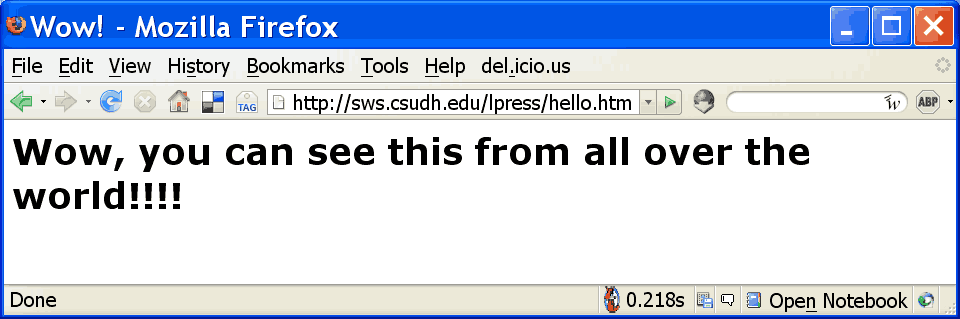
(If you view a changed file, and it appears not to have changed, reload it since it may have been cached by the browser).
When it looks exactly like mine, print it out to turn in. (Note that the screen shot of your Web page should be made from the server, sws.csudh.edu, not your local hard drive).
Also print and turn in a screen shot of FileZilla showing the files in your directory on the server.
Link to topic module
Sunday, October 31, 2010
Attributes and their values
This assignment will let you experiment with the attributes of the <hr />
tag and test your understanding of the terms tag, attribute and value.
Create a Web page with two paragraphs separated by a horizontal rule. The paragraphs can say anything you wish and the horizontal rule should look like this:
(the color is blue and it is 100 pixels wide, five pixels tall and centered.)
Experiment with the values of the attributes, and change the horizontal rule so that it is that is 20 pixels tall, 300 pixels wide, red, and on the left hand side of the window.
Do a second experiment in which the horizontal rule is the same except that its width is 50% of the window no matter how you resize it. (Be sure to resize the window to see if the horizontal rule resizes correctly).
Print out and turn in the HTML source and the resulting page displayed in a browser window for the original page and for both of your experiments.
Link to topic module
tag and test your understanding of the terms tag, attribute and value.
Create a Web page with two paragraphs separated by a horizontal rule. The paragraphs can say anything you wish and the horizontal rule should look like this:
(the color is blue and it is 100 pixels wide, five pixels tall and centered.)
Experiment with the values of the attributes, and change the horizontal rule so that it is that is 20 pixels tall, 300 pixels wide, red, and on the left hand side of the window.
Do a second experiment in which the horizontal rule is the same except that its width is 50% of the window no matter how you resize it. (Be sure to resize the window to see if the horizontal rule resizes correctly).
Print out and turn in the HTML source and the resulting page displayed in a browser window for the original page and for both of your experiments.
Link to topic module
Saturday, October 30, 2010
Basic HTML tags
The purpose of this assignment is get you used to demonstrate the mechanics of creating HTML pages and to see the effect of a few common tags.
For this exercise, you will create an HTML document, but instead of making it available on the Web, you will store it locally. Do not use a word processing program for this assignment, use a text editor. (The Notepad text editor is available on computers running Microsoft Windows).
You are to prepare a two paragraph document. Tell about yourself, your job, sports teams -- whatever you want. In addition to making up two paragraphs, put your name in the indicated spot. The marked up document should look like this:
<html>
<head>
<title>My first HTML document</title>
</head>
<body>
<h2> put your name here </h2>
<hr />
<p>
text of your first paragraph
</p>
<p>
text of your second paragraph
</p>
</body>
</html>
Print your document as it appears in the editor and as it appears when viewed using a Web client, and turn in both.
Create a second version of the file without the HTML tags -- just leave your name and the two paragraph description. View that version using a Web client and print it out to turn in. What changed when you deleted the HTML tags?
Link to topic module
For this exercise, you will create an HTML document, but instead of making it available on the Web, you will store it locally. Do not use a word processing program for this assignment, use a text editor. (The Notepad text editor is available on computers running Microsoft Windows).
You are to prepare a two paragraph document. Tell about yourself, your job, sports teams -- whatever you want. In addition to making up two paragraphs, put your name in the indicated spot. The marked up document should look like this:
<html>
<head>
<title>My first HTML document</title>
</head>
<body>
<h2> put your name here </h2>
<hr />
<p>
text of your first paragraph
</p>
<p>
text of your second paragraph
</p>
</body>
</html>
Print your document as it appears in the editor and as it appears when viewed using a Web client, and turn in both.
Create a second version of the file without the HTML tags -- just leave your name and the two paragraph description. View that version using a Web client and print it out to turn in. What changed when you deleted the HTML tags?
Link to topic module
Friday, September 17, 2010
Modify a blog
This assignment tests your understanding of modifying the layout and style of a blog.
Add Profile and Link List gadgets to your blog, as shown in this example blog.
Note that in the example there is a link to my profile, but my profile itself does not appear.
Blogger will find and use your Google Plus profile if you used the same account for Google Plus and Blogger.
Note also that the helpful links are to our class roster, class home page and professor's home page.
Don't forget to test the links to your profile and the helpful links to be sure they work.
Print and turn in a screen shot of the blog with the helpful links and profile gadgets.
Next change the your blog template and answer these questions:
Link to topic module
Prerequisite assignment
Add Profile and Link List gadgets to your blog, as shown in this example blog.
Note that in the example there is a link to my profile, but my profile itself does not appear.
Blogger will find and use your Google Plus profile if you used the same account for Google Plus and Blogger.
Don't forget to test the links to your profile and the helpful links to be sure they work.
Print and turn in a screen shot of the blog with the helpful links and profile gadgets.
Next change the your blog template and answer these questions:
- Did changing the template change the appearance of your blog?
- Did changing the template change the content of your blog?
Link to topic module
Prerequisite assignment
Create a blog
This assignment will familiarize you with blog creation using Blogger.
Go to www.blogger.com and create a blog. (You will need to create a Google account if you don't already have one).
Pick the Simple template so all of our blogs will have the same look and feel.
When you create your blog, it will have "about me" and "useful links" in the right hand column. Delete them for now. (We will add some back later).
Also set the blog title to your name and give it the description line "This is my class blog."
When you have it set up, add your first post.
Your first post should give our definition of digital literacy: "Digital literacy consists of the skills and concepts a student needs for success in school and after graduation as a professional and citizen."
When you are finished, it should look like this, but with your name, not mine. If it does not look exactly like mine, fix it.
Print and turn in a screen shot showing your blog.
Link to topic module.
Go to www.blogger.com and create a blog. (You will need to create a Google account if you don't already have one).
Pick the Simple template so all of our blogs will have the same look and feel.
When you create your blog, it will have "about me" and "useful links" in the right hand column. Delete them for now. (We will add some back later).
Also set the blog title to your name and give it the description line "This is my class blog."
When you have it set up, add your first post.
Your first post should give our definition of digital literacy: "Digital literacy consists of the skills and concepts a student needs for success in school and after graduation as a professional and citizen."
When you are finished, it should look like this, but with your name, not mine. If it does not look exactly like mine, fix it.
Print and turn in a screen shot showing your blog.
Link to topic module.
Thursday, September 9, 2010
Blogger
This assignment is a review of your understanding of Blogger and setting up an account.
Answer questions 1, 2 and 4 at the end of the Blogger PowerPoint presentation. Be sure your answers are clearly written -- don't turn in the first draft.
Subscribe to:
Posts (Atom)